

Step 1 – Open settings on your iPhone
From the home screen on your iPhone, open the settings option which is shown in the image below.

iPhone settings icon shown on screen
Step 2 – Scroll down to ‘General’ option and select
After selecting the settings you need to scroll down the page until the ‘General’ option is available, select this as shown in the image below.

General option shown on iPhone screen
Step 3 – Select ‘Software Update’ from the menu
After selecting ‘General’ you will be taken to the next screen. Here the ‘Software Update’ can be selected, it is just below ‘About’.

Software update menu option on iPhone
Step 4 – Check the iOS Version number if required.
After selecting the settings you need to scroll down the page until the ‘General’ option is available, select this as shown in the image below.

iOS Version number show on iPad update screen
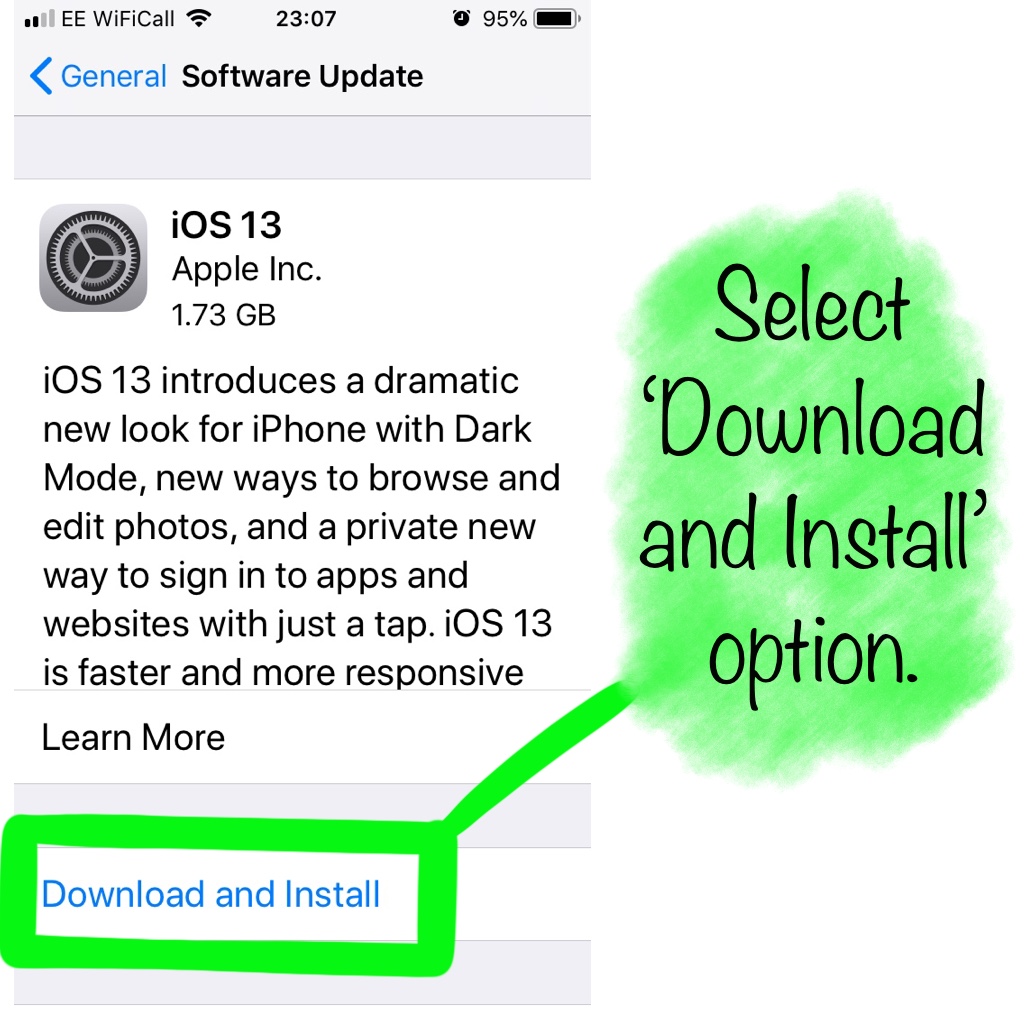
Step 5 – Select ‘Download and Install’
After checking the iOS version number you can select the ‘Download and Install’ option as shown in the image below. The iPhone will now begin to download the new update and after it will install, confirmation for the installation may be required.
iOS Version number show on iPad update screen
If you have any questions about this tutorial then please don’t hesitate to get in touch, we are always happy to help.